For documentation on the current version, please check Knowledge Base.
Tutorial: Setup Mobile Mapping Publication 10.3 bèta
This tutorial describes the steps for publishing in the temporary Orbit Publishing version June 2012.
1. Import Mobile Mapping data
To be able to use and publish Panoramas and Point Cloud data, the content need to be imported in Orbit and organized in Mobile Mapping Projects.
Import and Process Mobile Mapping data for using in Orbit
Orbit Client > Adminstration > Mobile Mapping
Import and Process your runs
Orbit Client > Adminstration > Mobile Mapping > Create Run
Import Mobile Mapping data in Orbit
Combine one or more runs into a project
Orbit Client > Adminstration > Mobile Mapping > Create or Edit Project
Manage your Mobile Mapping Projects
Recommended location : <IP-address>\orbit_client\data\moma_projects
Remark
To make your runs and projects available in your network and for the Orbit Service it is required to use UNC syntax (Uniform Naming Convention).

2. Assign Users to Project
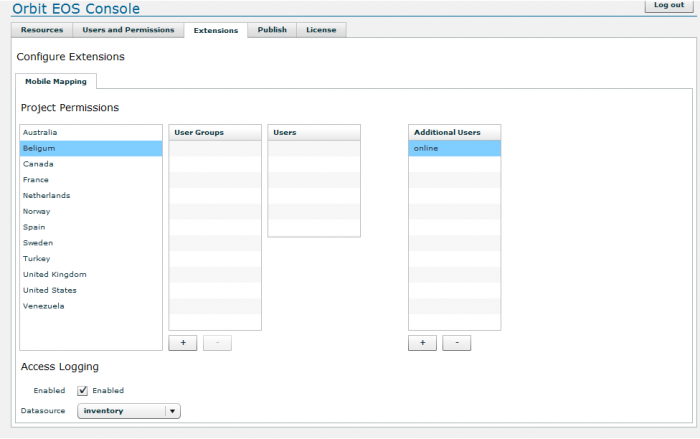
Protect your published data by defining the users who have access.
Assign user “online” to the required project
EOS Console > Extensions > Mobile Mapping
3. Publish WMS Capabilities
Publish datasets for browser viewing, if required due to dataset structure changes.
Orbit EOS Console > Publish
4. Create and Configure Pulblication Project
Create and Configure publishing project from _template.xml
<Orbit Installation directory>/server/program/services/ext_panorama/publications/_template.xml
- Define the starting position
XY can be copied from Panorama Object selection.
To view the xml file in this structure, open with Xml Notepad 2007


5. Create and Configure Html page
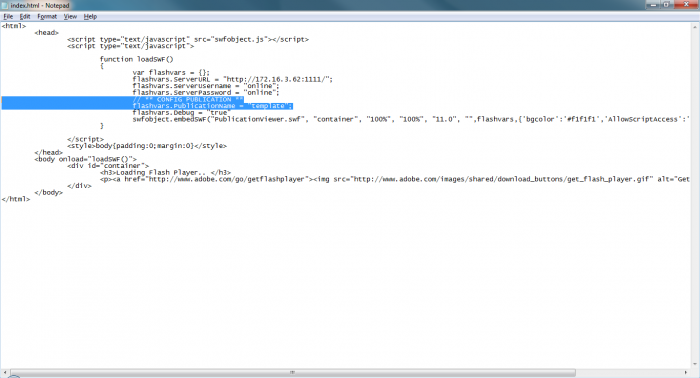
Create and Configure html page for Publication project from template
<Orbit Installation directory>/server/program/wwwroot/publications/
- Define the name of the Publication configuration xml file, cfr step 4.
6. Check Online
Check online
<server_ip>:1111/publications/<template>/index.html