This is documentation of a bèta release.
For documentation on the current version, please check Knowledge Base.
For documentation on the current version, please check Knowledge Base.
AI Detection: Coordinate Reference Systems
This page describes the use and application of specific Coordinate Reference Systems through AI-Detection jobs.
Analysis Engine is the independent module performing AI-Detection. For a few edge-cases the list of Coordinate Reference Systems supported by Manage and Extract can slightly differ from Analysis Engine's.
In such scenario, it is required to manually add the specific Coordinate Reference System definition in Analysis Engine installation folder.
The procedure is described below.
Horizontal - Projected CRS Definition
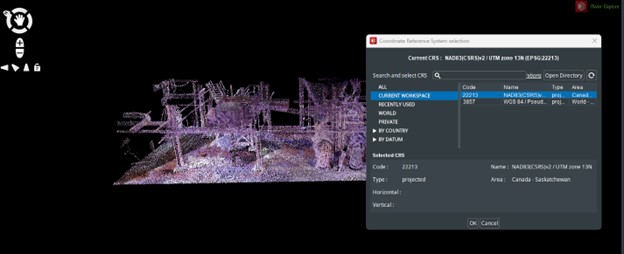
- Get the EPSG-code for target CRS (Here: 22213).
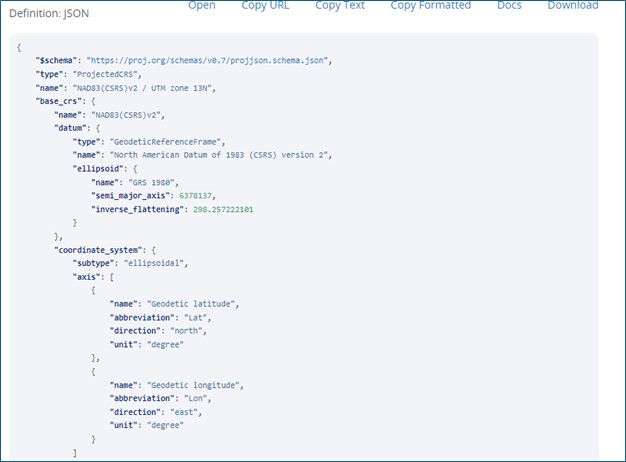
- Choose the JSON definition (easiest mode to get required values).\\
- Set in C:\Program Files\Bentley\iTwin Capture Analysis\data\gdal.
Open pcs.override.csv and fill-in dedicated fields with values extracted from EPSG website.
Here is a sample for EPSG:22213.
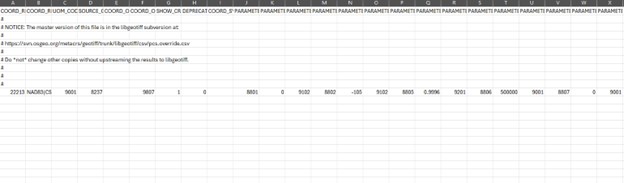
- Below are some insights on how to fill required fields in csv file


- Save & Close.
Set back in iTC Manage & Extract.
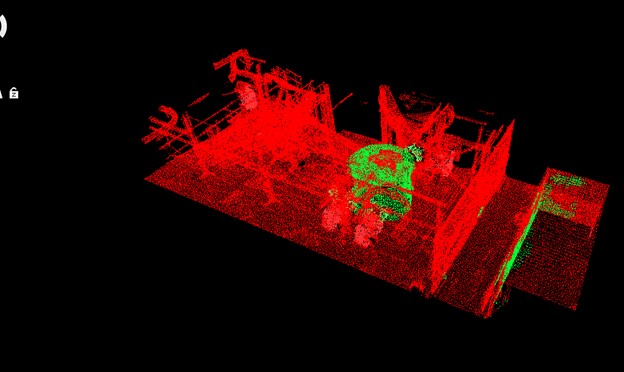
Launch AI-Detection job. It will complete


Vertical CRS Definition
- Download the grid corresponding to your vertical reference system in GTX format (here RAF09.gtx).
Such grid is not available on EPSG website and requires a specific search and download to become accessible.
This website offers some of these custom grids.
After download, paste gtx file (here RAF09.gtx in following directory: C:\Program Files\Bentley\iTwin Capture Analysis\data\gdal
- Set in C:\Program Files\Bentley\iTwin Capture Analysis\data\gdal.
Open vertcs.override.csv and fill-in dedicated fields with values extracted from EPSG website.
- Below are some insights on how to fill required fields in csv file
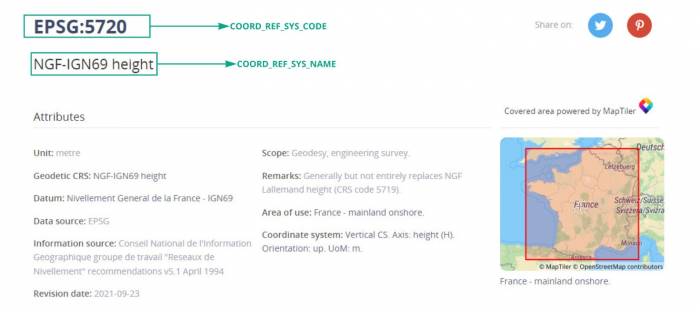

- Save & Close.
Set back in iTC Manage & Extract.
Launch AI-Detection job.
It will complete


Last modified:: 2024/11/13 13:30