Table of Contents
Linear Reference Systems
This page describes the use and application of Linear Reference Systems in Orbit.
Orbit provides to use 1 linear reference dataset. The user can choose from a list of custom datasets or system datasets.
The choice of the current linear reference dataset can be made in the window 'Linear Reference System selection' (see Workspace menu).
Only line vector datasets can be added as linear reference datasets.
LRS window
The user can manage his linear reference datasets via the 'Linear Reference System selection' window :
- See all (custom and system) available linear reference datasets of the installation.
- The user can change active/current linear reference dataset.
- Add a new custom linear reference dataset.
- Searching for a linear reference dataset in the list.
- See the attributes of every available linear reference dataset.
- See important information per linear reference dataset :
- Name : the name of the dataset
- Query : searching in the Search component is done based on this attribute (ID, Name or SIO ID)
- Offset : indicator whether dataset has an offset attribute
- #Objects : number of reference objects in dataset
- CRS : the CRS of the dataset
- Status : indicator whether this dataset can be used (red or green status icon with tooltip)
Concepts
Linear reference datasets are used for 2 concepts :
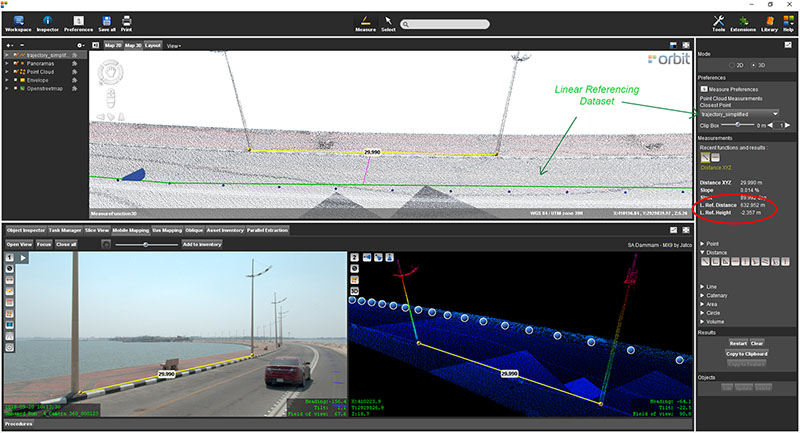
- 3D Measurements : In the Measure Sidebar the user can select the active linear reference dataset from a dropdown list. Every measurement can be projected to a linear reference dataset and interesting information can be obtained via measure attribute formulas.
- Search and Geocode : Via the Main Toolbar Search component the active linear reference dataset can be selected from the dropdown list. The user can then search via ID/Name and distance along the trajectory to a location on the Map.
LRS Vector Data Input
The LRS input must be a line vector dataset (.ovf or .ovt) and added into the Orbit installation directory, program/system/lrs, before starting the application. The user can also add their own line vector datasets via the 'LRS selection' window. Press the 'Open Directory' button and the operating system file explorer opens. Add the files and press the refresh button. The table is reloaded and the user can select and use their own custom dataset in his installation. It is also important to add an .ord file next to the line vector file.
LRS for 3D Measurements
Input Data
The active linear reference dataset (see LRS window) or any line vector dataset in the DataSetList can be used.
To apply an offset distance from the beginning of the identified reference object, the Object attribute offset is used.
Activate
Select linear reference dataset from the dropdown list on top of the Measure Sidebar.
Measure
The center of the measurement will be dropped perpendicular to the closest line segment of the LRS dataset. If the LRS dataset is 2D, the closest 2D perpendicular distance is calculated. If the LRS dataset is 3D, 3D distances are calculated.
- The dropped distance is shown as a pink line.
- The Linear Referencing segment is shown as a green line.
- Linear Referencing measurement results (LRef) are listed in the Measure Sidebar.
Extra
The LRef values can be copied (see Copy to Feature) to recordable datasets via 5 Measure Attribute Formulas. These formulas are ME LRef ID, ME LRef Length, ME LRef Distance XYZ, ME LRef Distance XY and ME LRef Distance Z. It is also possible to copy attributes from linear reference dataset to the new object (if they have the same attribute name).
With Clip Box positioning slider and 'jumping distance' the clipping box can be easily moved along the linear referencing line if the Clip Box is defined (how to define clipping box, see 3D Point Cloud Clipping).
LRS for Search and Geocode
Input Data
The active linear reference dataset (see LRS window) can be used.
To search for the specific reference object, the Object attribute ID, and if not available, the attribute Name is used.
Activate
Select the active linear reference dataset (see Search LRS) from the dropdown menu in the Main Toolbar Search component.
Enter the 'ID' or 'Name' attribute value and a distance (kilometers) as an offset.
Search
The Map will focus on a location along the trajectory (=linear reference dataset).
Extra
When selecting LRS via Search component, the user can lock Map 3D to this linear reference dataset. The user can move along his trajectory by scrolling with the mouse. Map 3D is locked when the LR icon turns green. If locking fails, the LR icon remains red. Locking Map 3D is interesting when annotating point clouds. It is also possible to move a Slice view along the trajectory.
As of release 25.00.01, Linear Reference Systems within Desktop have been updated:
- Negative Values to the left of the reference path
- Positive Values to the right of the reference path
- New measurement result: LRef Length Km/LRef Length Mi
- New Autocomplete field within the Geocode Search option