Table of Contents
Snap function
Snapping = the action which fits a newly created or an edited object vertex exactly onto a nearby reference position.
This reference position can be another object vertex or construction point/line.
The snap indicator shows a red circle in case of a snapped vertex.
This reference position can be another object vertex or construction point/line.
The snap indicator shows a red circle in case of a snapped vertex.
Snapping is only possible if the CRS of the edited dataset is the same as the MapCanavas CRS.
More about coordinate systems can be reviewed here : Coordinate Reference Systems.
More about coordinate systems can be reviewed here : Coordinate Reference Systems.
Snap to Objects
While editing, Orbit will snap to object points.

The snap behaviour depends on the editing preferences. It's important to know to which objects will be snapped:
- To selected objects only. To snap on an object point, the target object needs to be selected. Otherwise the point will not snap to the exact position of the vertex.
- To all objects within the selected dataset. No selection required.
- To all visible datasets. No selection required.
Not all Edit tools contain snap. Below the most important “snap”-tools are listed.
| Function | Action | Example | |
|---|---|---|---|
 New object | Click nearby an existing object point to snap | 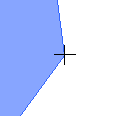 | 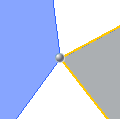 |
 Move a point | Click and drag point(s) to a snappable position. | 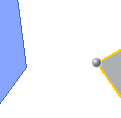 | 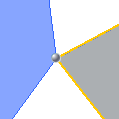 |
| If more object points of different objects overlay, only the vertices of selected objects will be moved. | 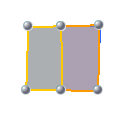 | 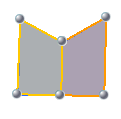 |
|
 Add a point | Click a new point on an intersection line and drag to a snappable position | 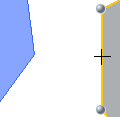 | 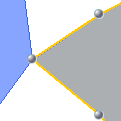 |
 Add a part | Click a position for every point of the area. Each click nearby a snappable postition will snap on the existing vertices. |  | 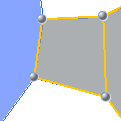 |
 Cut Objects | When cutting an object into two parts, orbit creates two neighboring objects. The common object points are snapped when the object is cut. | 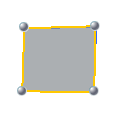 |  |
 Merge Objects | To merge objects into objects with only one part, it's necessary that object points of neighboring objects are common. Common objects can be created by snapping them to each other. | | |
Snap to Constructions
The construction tools can be used to snap object points while editing.
In the editing preferences it is possible to enable snap to both Construction points and Construction lines.
| Function | Action | Edit Tools | Example | |
|---|---|---|---|---|
 Snap to Construction Points Snap to Construction Points | Use the position of the construction points to edit object points. | Create new object | 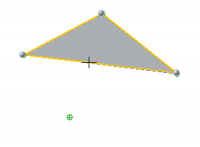 | 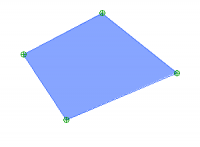 |
| Move a point |
||||
| Add a point |
||||
| Add a part |
||||
 Snap to Construction Lines Snap to Construction Lines | Edit object points using positions of the construction lines. | Create new object |  | 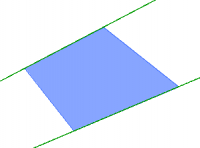 |
| Move a point |
||||
| Add a point |
||||
| Add a part |
||||