This is documentation of an archived release.
For documentation on the current version, please check Knowledge Base.
For documentation on the current version, please check Knowledge Base.
http://3dmapping.cloud/about-3dmc/about-screen-layout/
Screen Layouts in the Workspace sidebar
Open the Workspace sidebar using the flyout :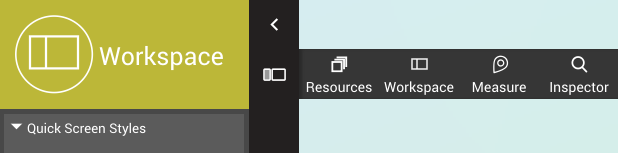
Using the Screen Layouts
Pick one of the presets to set your Screen Layout. There's a choice between a single 3D view, or a combination of the 3D view with a base map either at the top, at the left side or floating, and more.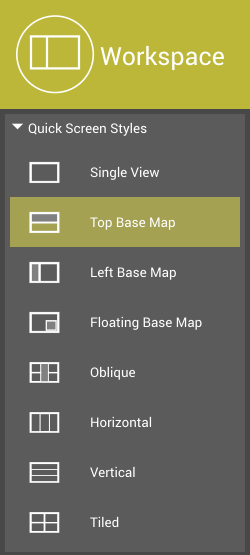 When selecting Top Base Map, Left Base Map, Floating Base Map or Oblique, all other part(s) shows the standard multifunctional view. But it also adds new capabilities starting with the menu options to be found central-top in the viewer :
- Click on the View icon to switch to any view mode : 3D view, Spherical Image, Planar Image, .. according to the data you have opened. See below.
- Click on the Number to open a new menu : Use 'Add' to open a next viewer, or 'Move' to reposition the current view by a click on the Base Map, use 'Close' to close a viewer (you can't close the last one). See below.
- When viewing Oblique Images, you can supplementary switch viewing direction.
Last modified:: 2019/03/25 11:36