For documentation on the current version, please check Knowledge Base.
Orbit Desktop Installation and License Request
This page describes how to download, install, request license and activate your Orbit standalone desktop product.
Client-Server and Publisher products are available on demand only and will require assistance by the Orbit support team to install.
Register
A registered Orbit account is required to download a product and to request a license.
If you do not have your own account, complete and confirm your registration. Check your junk mail, the confirmation email may be blocked by your spam filter.
http://www.orbitgt.com/user/register
Download
Install
Double click the downloaded executable to install :
- Do not overwrite a previous Orbit installation with a new version.
- Operating System Administrator privileges are required for a successful installation.
Request Activation Key
Registered users can request an Activation Key. For registration, see above.
Trial licenses are available with some feature restrictions. Full license are granted upon completion of a purchase.
- Start Orbit
If you do not have a valid license, the license window will pop-up. Otherwise, open this window from the "Help" menu. - License Manager Window
- Click the “Request Activation Key” button next to the Activation Key entry line at the bottom of the window to request a license for all listed products.
- You will be redirected to our online license request page.
- Online License Request page (Login required)
Optionally add a comment and submit your request. - License email
- After confirmation you will receive an automatic reply to confirm your license request has sent successfully.
- As soon your request has been validated, you will receive another license mail containing the Activation Key.
New license requests are processed during CET office hours (9AM - 5PM CET).
License Manager Window 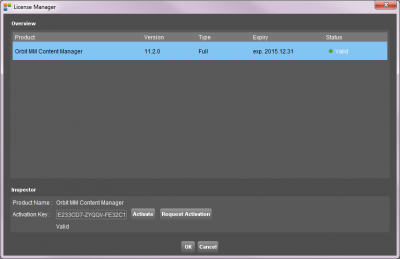
|
Online License Request page 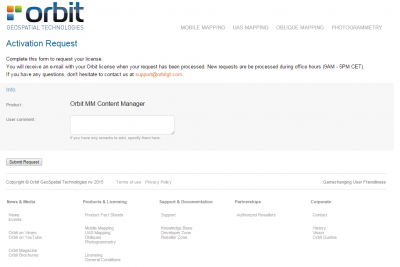
|
Activate Product
Validate your product by entering the Activation Key.
Product activation must be done once by every operating system user.
- Start Orbit
If you do not have a valid license, the license window will pop-up. Otherwise, open this window from the "Help" menu. - License Manager Window
- Select the product in the overview table.
- Copy and paste the according Activation Key into the entry field
- Click the “Activate” button to validate the product. Online connectivity is required.
- Restart Orbit
Online Licensing
Orbit manages all licenses and its concurrent use in the Orbit Online License Database. An Orbit standalone desktop product will connect to this central license service every time you start and stop the application. By closing the application properly, the concurrent seat will be released immediately allowing you or any co-worker to start the same license on a different machine right away.
Online connectivity is required to start the application and to release your concurrent seat at closing the application.
If you successfully started the application the concurrent seat is valid for a given period of time. When your license lease is about to expire the application will reconnect automatically to the online license service to extend the license lease lifetime.
More Information
- Take a look at our comprehensive online knowledge base.
- A trial license include some feature license restrictions.
- Get more out of your powerful computer, raise memory available to Orbit.
- If you have any question contact support at orbitgt dot com